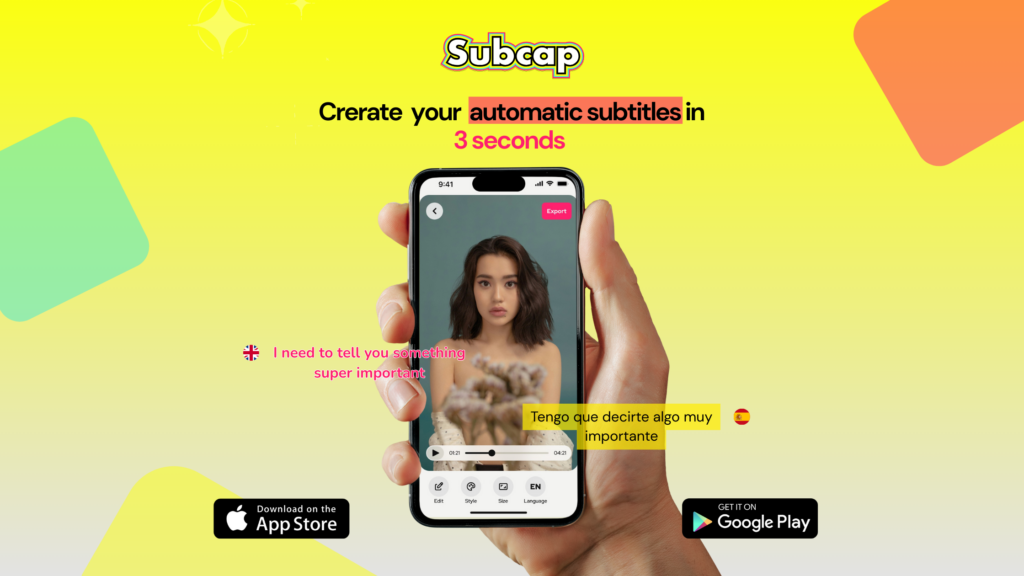
You’ve just filmed a video on your iPhone and you want to add automatic subtitles before sharing, but you don’t want to spend hours doing it manually. You’re in the right place. In this guide, we’ll walk you through the fastest and most accurate way to add automatic subtitles to iPhone videos and ensure your audience fully understands your content, step by step. Adding automatic subtitles is essential for maximizing engagement and accessibility for your iPhone videos.
Why Adding Subtitles to iPhone Videos Matters So Much
Using automatic subtitles for your iPhone videos improves the viewer’s experience and ensures that your message is communicated effectively.
85% of videos on social media are watched without sound. That means a video you upload without captions is essentially silent and meaningless to the majority of your audience.
Adding automatic subtitles to iPhone videos not only enhances accessibility but also boosts engagement, making your videos more impactful.
On top of that:
- 466 million people worldwide live with disabling hearing loss. Adding captions makes your content accessible to this audience.
- Instagram, TikTok, and YouTube algorithms push captioned videos to wider audiences.
- Reaching viewers who speak different languages now requires translated subtitles — it’s no longer optional.
The problem? iPhone’s native Photos app and iMovie don’t offer automatic subtitle generation. That’s where a third-party AI caption app comes in.
What Do You Need to Add Captions To Video on iPhone?
All you need is an AI-powered subtitle app. These apps transcribe the speech in your video, automatically sync the captions to the audio, and let you export the finished video.
As of 2026, one of the best options for iPhone is Subcap — a free app available on the App Store that works on both iOS and Android.
Step-by-Step: How to Add Subtitles to iPhone Videos with Subcap
Step 1: Download Subcap
Open the App Store, search for “Subcap,” and install the app for free. Setup takes about 10 seconds.
Tip: On the App Store, Subcap is listed as “Captions for Videos – Subcap.”
Step 2: Upload a Video or Record One
Once you open Subcap, you have two options:
- Upload from your gallery: Select a video you’ve already filmed from your iPhone photo library.
- Record directly in the app: Use Subcap’s built-in camera to shoot a new video. This method makes the captioning process even faster.
Step 3: Select Your Language
Subcap can automatically detect the language spoken in your video. You can also manually choose from more than 125 supported languages, including English, Spanish, French, German, Turkish, Portuguese, Japanese, and many more.
Step 4: Generate Your Captions
Tap “Generate Captions.” Subcap’s AI engine analyzes your video and creates accurate, synced captions in seconds. Even for longer videos, the process typically takes under a minute.
Subcap claims a 99% caption accuracy rate — one of the highest in the mobile app industry.
Step 5: Edit Your Captions (Optional)
Once the captions are generated, you can fine-tune them:
- Fix any misrecognized words
- Change the font, color, size, and position
- Choose a caption style (classic, bold, animated, etc.)
- Adjust where captions appear on screen (top, middle, or bottom)
Step 6: Use the Dual Language Feature (Optional)
One of Subcap’s standout features is dual language support. You can display captions in two different languages on screen at the same time. For example, you can show the original English captions alongside a Spanish translation at the bottom of the screen. This is a game-changer for creators targeting international audiences.
Step 7: Export and Share
When you’re done editing, export your video in 720p or 1080p quality. The caption text can also be copied separately — making it easy to paste into a social media post, blog, or email newsletter.
What Can You Do with Subcap?
| Feature | Subcap |
|---|---|
| Automatic caption generation | ✅ |
| Supported languages | 125+ |
| Dual language captions | ✅ |
| Font and color customization | ✅ |
| Manual caption editing | ✅ |
| Export quality | 720p / 1080p /4K |
| iOS support | ✅ |
| Android support | ✅ |
| Free to use | ✅ (core features) |
Frequently Asked Questions About Adding Subtitles on iPhone
Do I need an internet connection to add subtitles?
Yes. Subcap runs its AI captioning model in the cloud, so an internet connection is required to generate captions. Once your captions are created, editing and exporting can be done offline.
Is adding subtitles on iPhone free?
Subcap’s core features are free to use. The Pro version unlocks unlimited project creation, automatic caption feature, and additional customization options.
What formats can I export a captioned video in?
Subcap exports your video as an MP4 file with captions burned in. The caption text is also available to copy separately. You can even export .srt file.
How accurate are the auto-generated captions?
Subcap targets a 99% accuracy rate for clear speech. Background noise or very fast speech may require minor corrections, but the overall accuracy is significantly higher than most competing apps.
Is Subcap good for Instagram Reels and TikTok?
Yes. Subcap is optimized for short-form vertical video. It fully supports the 9:16 aspect ratio and exports videos ready to upload directly to TikTok, Instagram Reels, and YouTube Shorts.
Does it work for longer videos too?
Yes. Subcap works for both short clips and longer videos. You can import and caption your videos max 1800sec.
Can I add captions in a language different from the spoken audio?
Yes. You can generate captions in one language and add a translation overlay in a second language simultaneously using the dual language feature.
Subtitle Tips for TikTok, Instagram Reels, and YouTube Shorts
A few practical tips for content creators:
TikTok: Center your captions on screen and use a large, bold font. Colorful captions tend to get more attention in the TikTok feed.
Instagram Reels: Match your caption color to your brand palette. A consistent caption style gives your feed a more professional look.
YouTube Shorts: Place captions near the bottom of the screen with a clean, easy-to-read font. Avoid covering faces or important visual elements.
General tip: Videos with captions see an average 40% increase in watch time. This directly boosts your algorithmic performance across all platforms.
Why Choose Subcap?
There are several auto-caption apps on the market. Here’s what sets Subcap apart:
- Speed: Captions are ready in seconds — no waiting around.
- Accuracy: A 99% accuracy rate means less time correcting mistakes.
- Dual language: Show two languages simultaneously — ideal for global creators.
- 125+ languages: Broad language support covers most of the world’s major languages.
- Ease of use: No technical knowledge required. A few taps and you’re done.
- Accessibility: A powerful tool for anyone committed to creating inclusive content.
Conclusion
Adding automatic subtitles to iPhone videos is now a matter of minutes, not hours. With an AI-powered app like Subcap, you can make your content more accessible, reach wider audiences, and perform better on every major social media platform.
Try Subcap for free: App Store | Google Play
This post was written by the Subcap team. Subcap is an AI-powered video captioning app available on iOS and Android.
Related Posts: