
You can export your video with subtitles in two languages simultaneously like example above.
To get started, make sure you’ve added first subtitles and it’s translation language to your video like below.
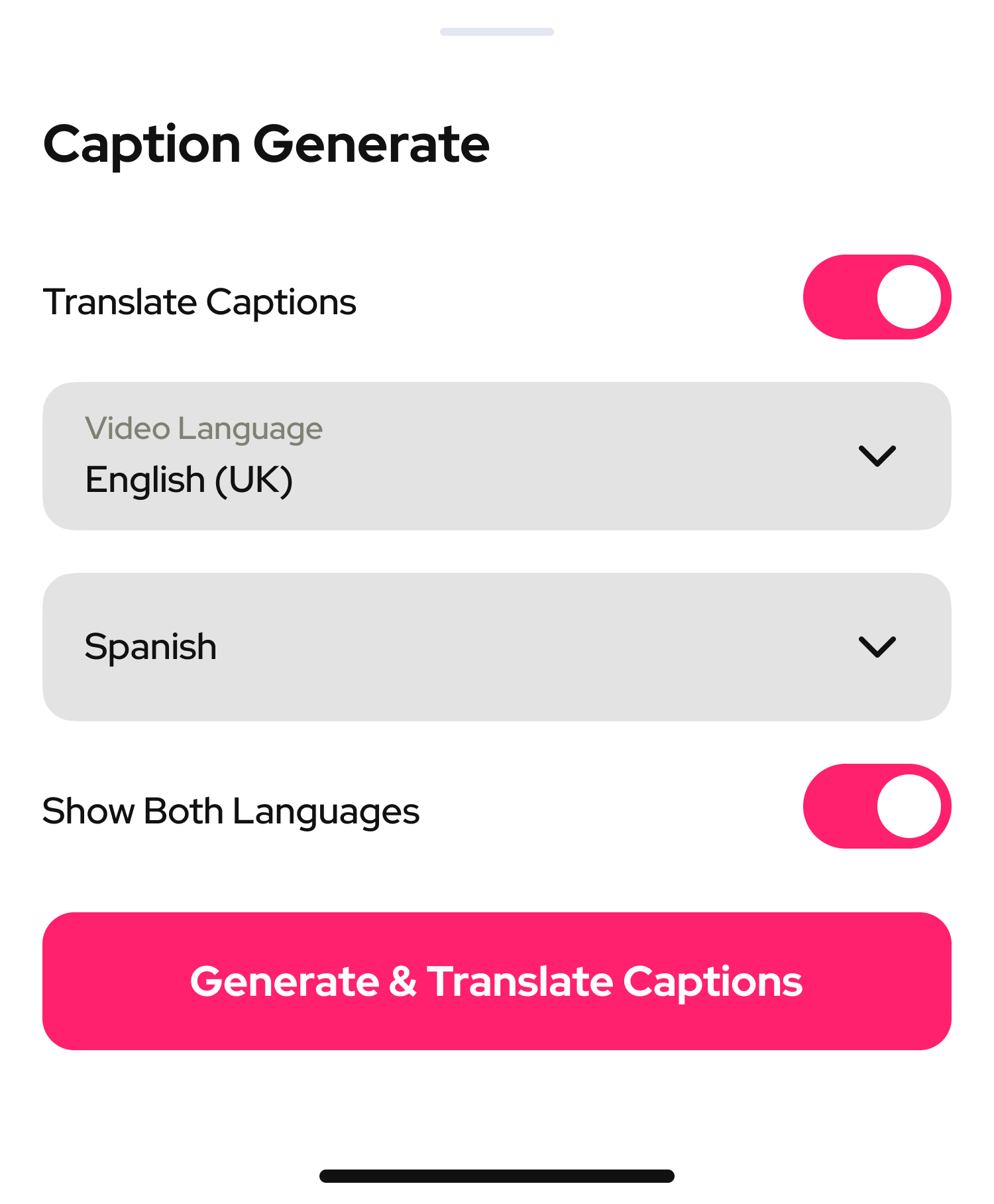
If you’ve already added first subtitles and would love to add second or more language to your video, simply follow these steps;
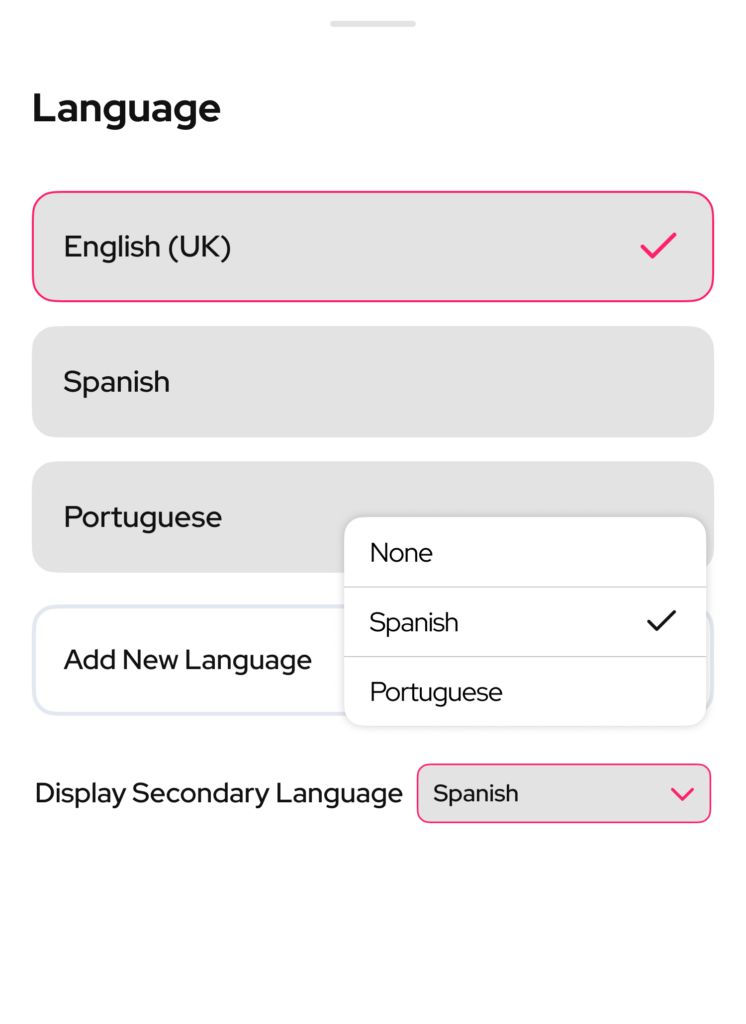
- Go to the Language section and add a second language by tapping “Add New Language”

- Make sure the new language subtitles were added successfully
- Then tap “Display Secondary Language” and select any language you have added
4. Position each language separately on the screen one by one
5. Adjust their styles if needed
6. Tap Export — in the Language selector on export screen, choose both language.
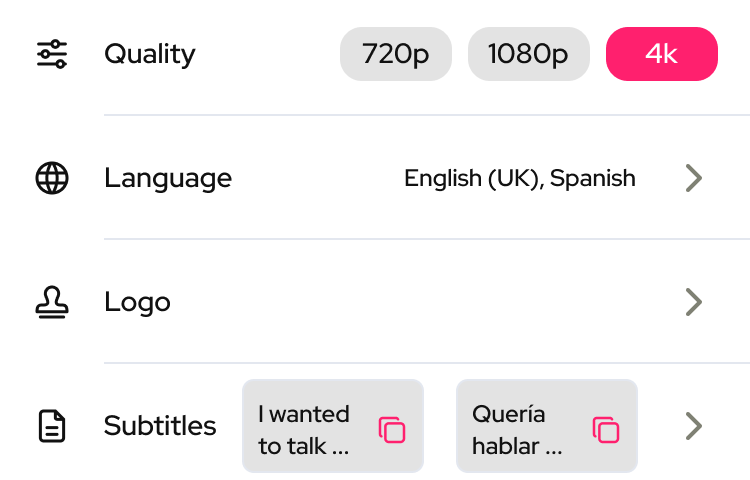
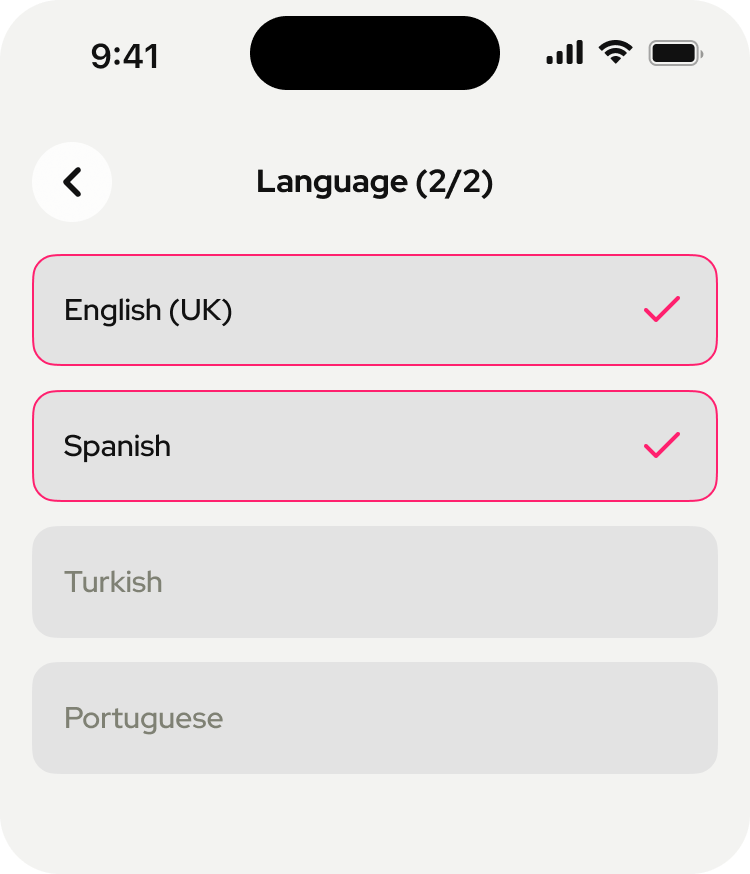
7. Then hit Export button and your bilingual subtitles downloaded already.