5 Tips for TikTok Growth
TikTok is becoming more and more popular every day. Although it began as a lip-syncing app, it is now one of the best platforms for influencers and…

CapCut
CapCut edits video. Subcap captions it: simpler, every style included, first video free. Cut in CapCut, export, caption in Subcap. No time to edit? Caption the raw clip and post.
CapCut is a capable editor, and captions are one small tool inside it. That is where the trouble starts: the free plan allows only a few automatic caption generations before the Generate button turns into an upgrade screen, most caption styles need CapCut Pro, and getting to a captioned video means learning a timeline with tracks and layers. If you post a few clips a week, the limit arrives fast and the monthly plan costs more than a caption app should.
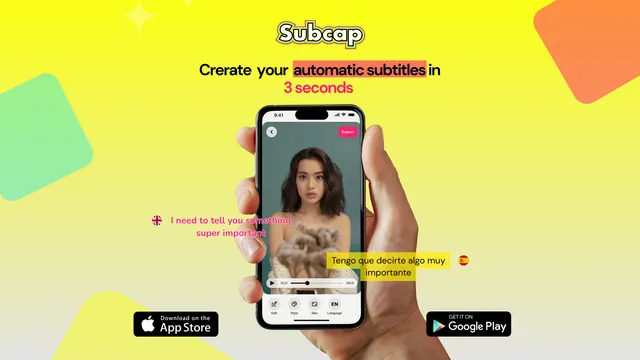
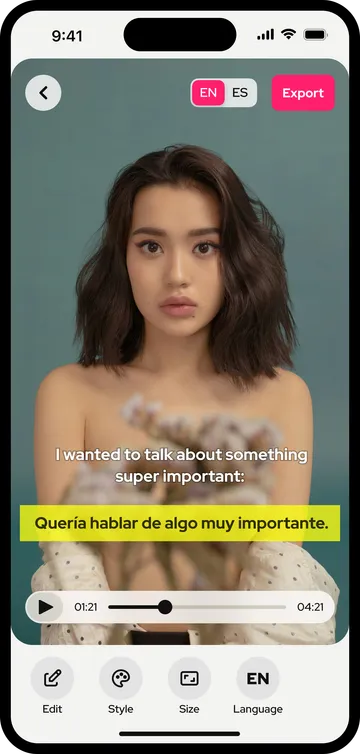
Subcap is built for one job, and it shows. Pick a video, tap Generate, pick a style, export: no timeline, no layers. It transcribes 100+ languages with automatic detection and lets you fix every line. Every caption style, font, color, position and word-by-word highlight is included, on the free plan too. Manual captions are unlimited and free. Translation and bilingual subtitles put two languages on one video. The captions are burned into the exported file, so they look the same on every platform.
What Subcap does not do is edit video: no trimming, music or effects. That stays in CapCut, and the two apps fit together well. Many creators already work this way: edit in CapCut, export, caption in Subcap, post.
Some days there is no time for an edit, or the clip does not need one. Then skip CapCut: open the raw video in Subcap, generate the captions, pick a style and post. Accurate captions on a straight-from-camera clip beat a polished edit that most people watch on mute.
Subcap captions your first video for free, including the editor and a watermarked 720p export. Pro is a weekly plan with a 3-day free trial or a yearly plan; see the pricing page for the standard prices.
| Feature | CapCut | Subcap |
|---|---|---|
| Easy to useHow long before the first captioned video. | Timeline, tracks and layers first | Pick, Generate, style, export |
| Free automatic captionsWhat you get without paying. | A few, then an upgrade screen | First video free |
| Caption styles on the free planFonts, colors, outlines, positions, word-by-word highlight. | Most need Pro | All included |
| Manual captionsType or fix any line. | Yes | Yes |
| Captions burned into the videoSame look on every platform. | Yes | Yes |
| LanguagesSpoken language detected automatically. | Varies by plan and region | 100+, auto-detected |
| Two languages on one videoTranslate and show both at once. | No | Yes |
| Paid planHow you pay when you need more. | Monthly only | Weekly with a 3-day trial, or yearly |
| Trim, cut, effects, musicEditing stays in CapCut. | Yes | No |
CapCut column as reported by users and reviews in November 2026; CapCut does not publish its caption limit and it changes. Subcap column: the app as of version 4.1.
Trim, add music and effects as usual. Export the video without captions; Subcap adds them on top.
Pick the exported clip from your library, or share it to Subcap from Photos on iPhone. Subcap detects the language and generates the captions.
Choose a caption style, fix any word, add a second language if you want, then export in 720p, 1080p or 4K and post.
More in the FAQ and on the pricing page.
TikTok is becoming more and more popular every day. Although it began as a lip-syncing app, it is now one of the best platforms for influencers and…
You’ve just filmed a video on your iPhone and you want to add automatic subtitles before sharing, but you don’t want to spend hours doing it manually.
First automatic caption video is free. Export from CapCut, open in Subcap, post with captions.