
Frequently asked questions
Everything about using Subcap, from adding subtitles to managing your subscription. Can't find it? Write to hello@subcap.app.
Getting started
How to add subtitles manually on Subcap
Some can prefer to add manual subtitles. It is a long process, but very easy with Subcap.
After recording a video on the app or adding an existing one from the gallery, click “Add Manually”:
When the video is uploaded, select Edit button. Then + button will appear in the middle of the video.
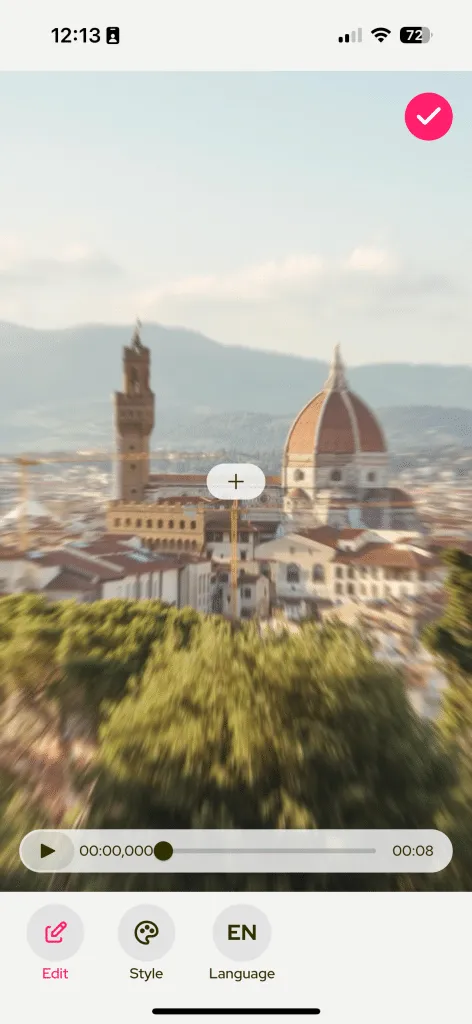
If you select + button, you can write the subtitle on the edit box. You can also change the time interval here.
How to add subtitles automatically on Subcap
Let’s add subtitles to your videos automatically on Subcap!
First of all, you can shoot a video from the homepage or add an existing video from your phone.
After adding a video, select your video language. And tap Generate Captions.
If you want to add subtitles automatically, select Go Pro.
If you are already Pro, it’ll ask again and just select Continue. And then you can edit the subtitles easily if necessary.
How to rename, duplicate and delete projects on Subcap
You can rename, duplicate and delete your projects on Subcap. Now there’s an option to delete all of the projects as well!
Tap and hold the project to see the options.
You can select duplicate to make a copy of your project.
You can select rename to change your project’s name.
You can select delete to delete your project permanently.
If you select Edit button on the top right corner, you can select multiple projects to delete. You can also select Select All option to delete all projects.
How to convert HDR videos into SD videos
HDR10+ videos will not play on devices that aren’t compatible. However, you can convert your videos on the phone so they’ll be able to play on almost any device.
Navigate to and open Gallery. Select your desired HDR10+ video, then tap Edit, and then tap More options (the three vertical dots) Tap Size and format and select your desired resolution from the list. Tap HDR10+ and then select SDR. Tap Done and Gallery will save a copy of the video in the resolution you chose.
Source: https://www.samsung.com/us/support/answer/ANS00086003/
How to change the size of the video
With Subcap’s new update, you can export your videos in different sizes. Select from square, vertical, horizontal and other video sizes optimized for all platforms.
Start by selecting Size on the bottom of the page.
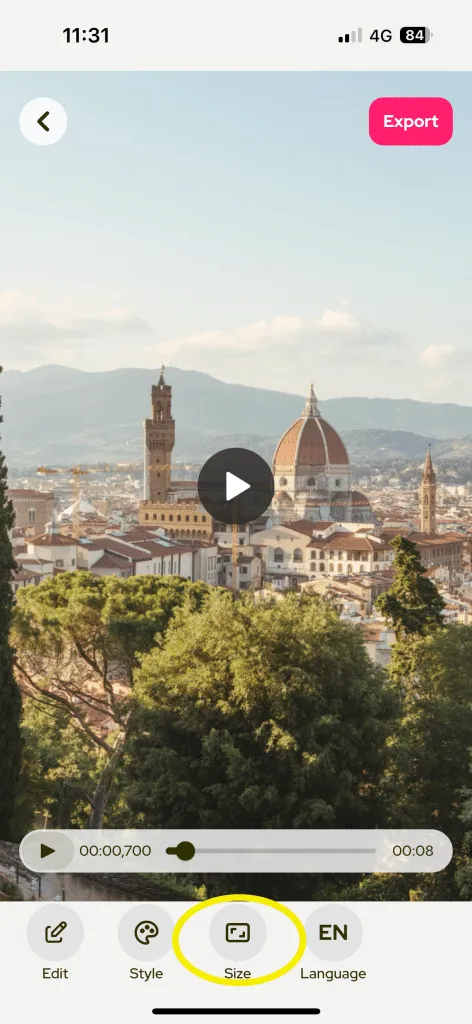
You’ll see these options:
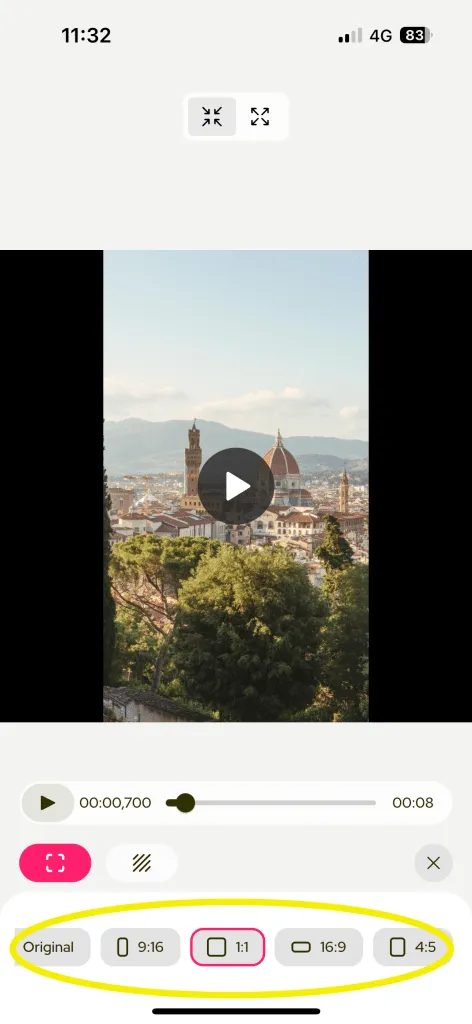
You can keep your original size or choose 9:16, 1:1, 19:9 or 4:5.
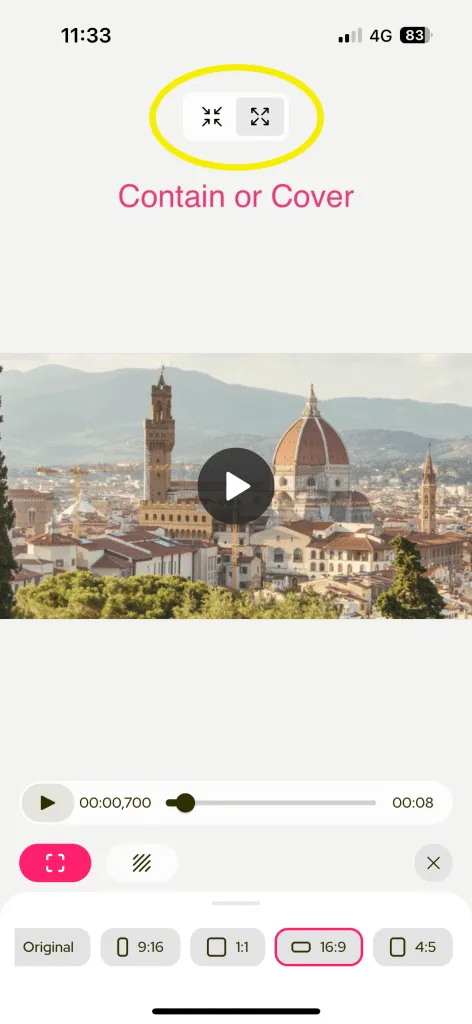
You can also contain or cover videos with background colors and reposition them.
Select this button to change the background color:
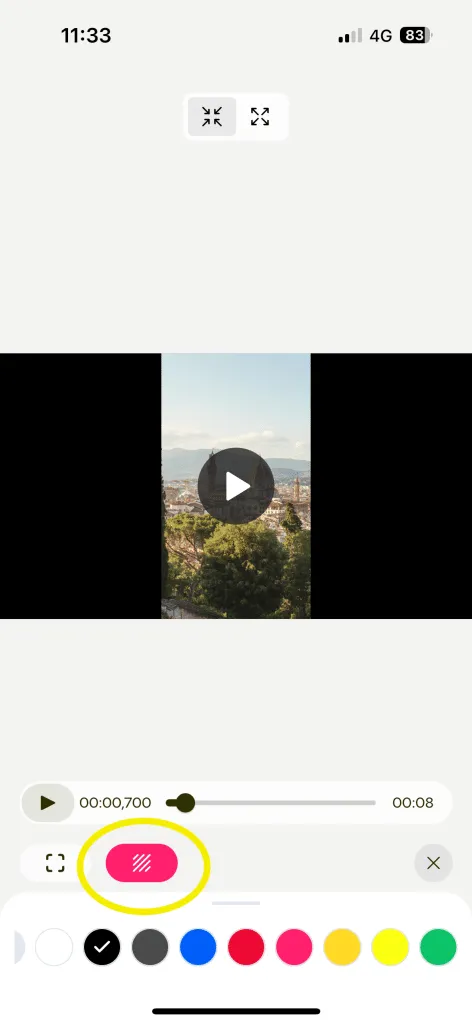
Adjust the color as you like:
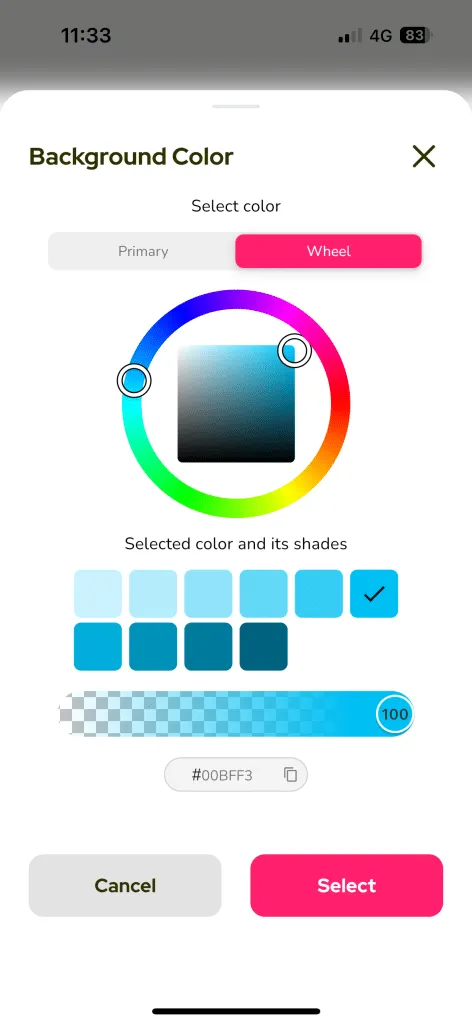
You can now go to Export page to download your video.
Editing captions
You can easily edit the generated captions on Subcap.
You can pause the video by tapping on it. You can edit the sentences one by one this way.
You can also change the timing.
If you tap the Edit button, then you can see all the captions and edit them.
If you like to merge the two subtitles, you can use the buttons on the top of the screen.
How to upload or download SRT files on Subcap
Here’s how you can download or upload .srt files:
After you transcribe or translate your video, you go to Export page.
At the bottom of the page, you can see Subtitles option.
When you go to Subtitles, you’ll see the whole text and you can tap Download .srt button.
When you select that button, you’ll see a text “Subcap – Project 1.srt is ready to save.” You can choose where to save or share your SRT file.
If you like to upload an SRT file, select the language of the video (EN).
And then select .srt button shown below.
Select the file from your phone and upload. Make sure you are using the correct format.
If you already have subtitles on your video, it’ll ask you this question:
If you want to open the srt file you downloaded, your phone must have an app that supports srt.
How to move the text position on Subcap
You can easily change the position of the captions on Subcap.
First, you need to select the Style button. Then select the button shown below for position.
You can choose Bottom, Middle and Top.
If you like to position the text yourself, you can choose Edit option on the right.
After selecting Edit, the text will be in a pink frame. Now you can move it up and down.
How to highlight or customize word by word
Now it’s easy to customize each word on Subcap.
Firstly, select the word by double tapping on the word.
There are a pallet icon for font color, Aa icon for outline color and a highlighter pen, Italics, Underline and Overline icons for you to customize your font.
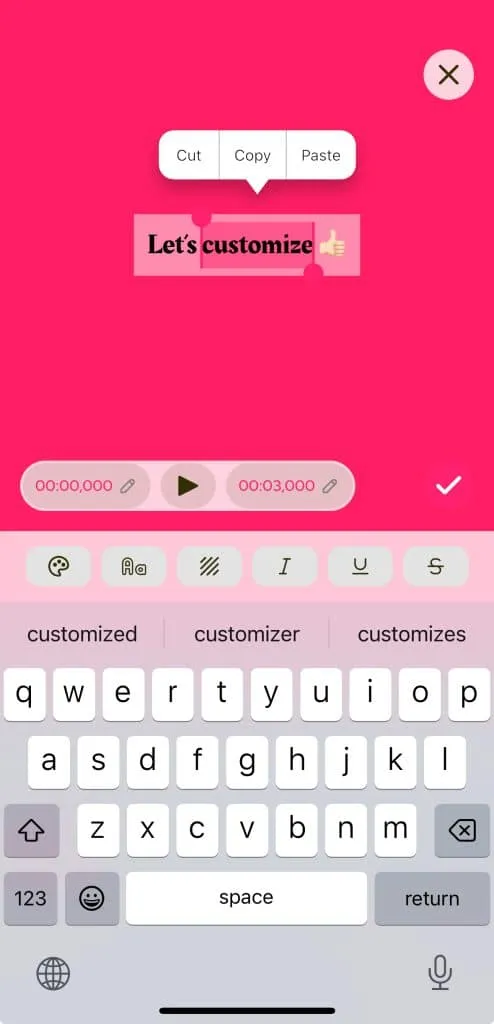
Please check our video below to see how to do customize your font as you like.
Translation and languages
How to translate subtitles on Subcap
It’s really easy to translate videos on Subcap with the help of AI.
First of all, try to add or shoot a video. You’ll see this screen:
Select your video language. If you want to translate your video, activate the Translate Captions button.
Select the language of the translation. Then tap Generate & Translate Captions.
You’ll get the translated video.
If you like to see the original video captions, then select the language from the bottom of the page.
How to add two subtitles in two different languages (bilingual subtitles)?
You can export your video with subtitles in two languages simultaneously like example above.
To get started, make sure you’ve added first subtitles and it’s translation language to your video like below.
If you’ve already added first subtitles and would love to add second or more language to your video, simply follow these steps;
-
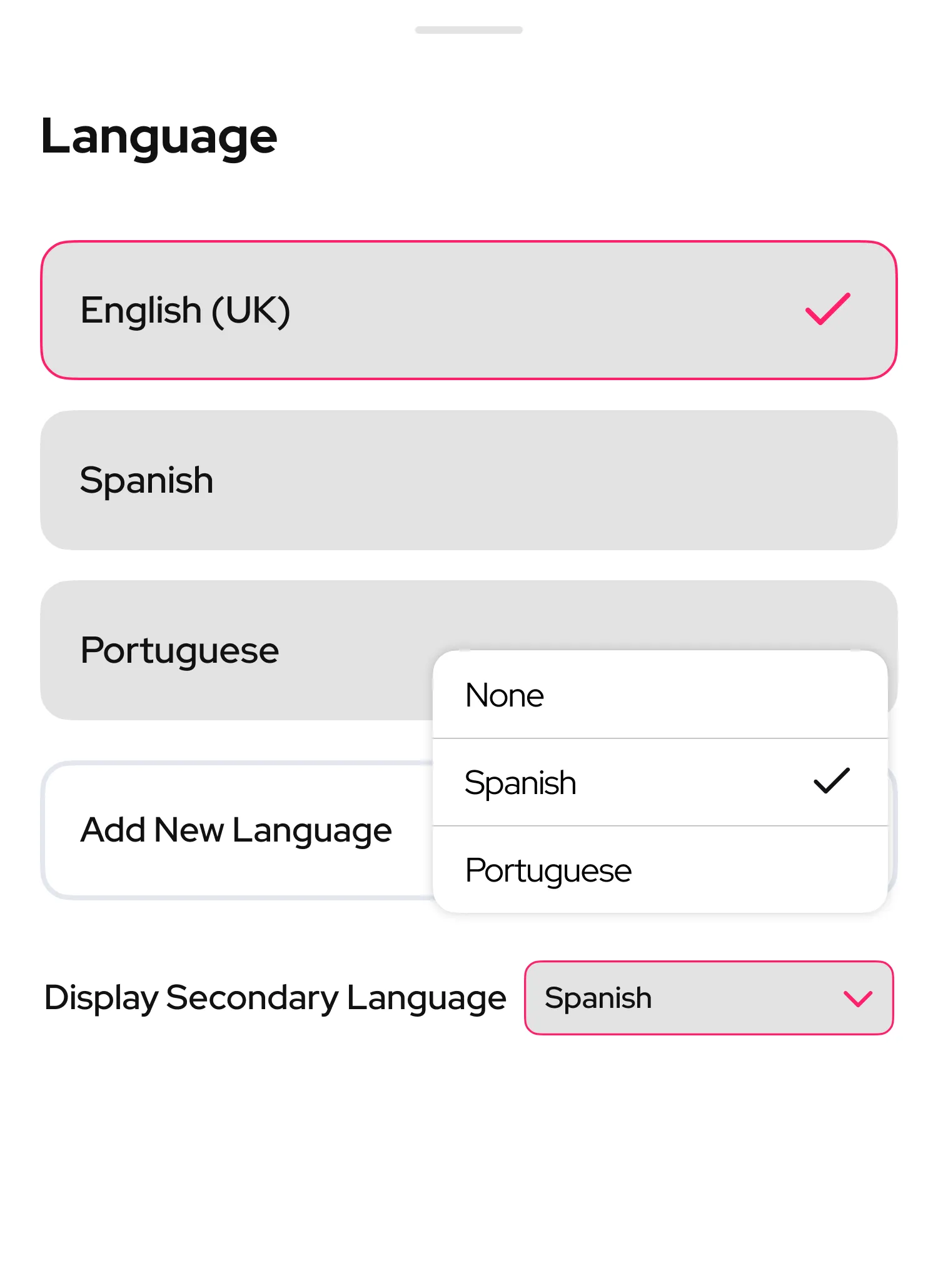
Go to the Language section and add a second language by tapping “Add New Language”
-
Make sure the new language subtitles were added successfully
-
Then tap “Display Secondary Language” and select any language you have added
-
Position each language separately on the screen one by one
-
Adjust their styles if needed
-
Tap Export — in the Language selector on export screen, choose both language.
-
Then hit Export button and your bilingual subtitles downloaded already.
Styles, fonts and branding
How to show or hide Subcap watermark
If you are a Pro user, you can remove or keep Subcap watermark (logo) from your videos. You can even add your own logo!
After transcribing or translating your video, go to Export page. Select None under Logo and your video won’t have a watermark.
If you select Subcap watermark or add your logo, your video will have Subcap watermark like below.
How to edit a created font style
Let’s edit and update the style you created before on Subcap.
Select the existing font style that you previously created.
Choose Edit icon. You can edit the way you like on this page.
Select Update Style.
If you like to create another one, select Create New Style.
How to create new style fonts?
Create your unique brand style in minutes!
Choose from a variety of fonts, colors, outlines, and backgrounds to craft your brand’s distinct look. Save your custom style and apply it effortlessly to every video you create.
After you add your video, select Style to customize your text style.
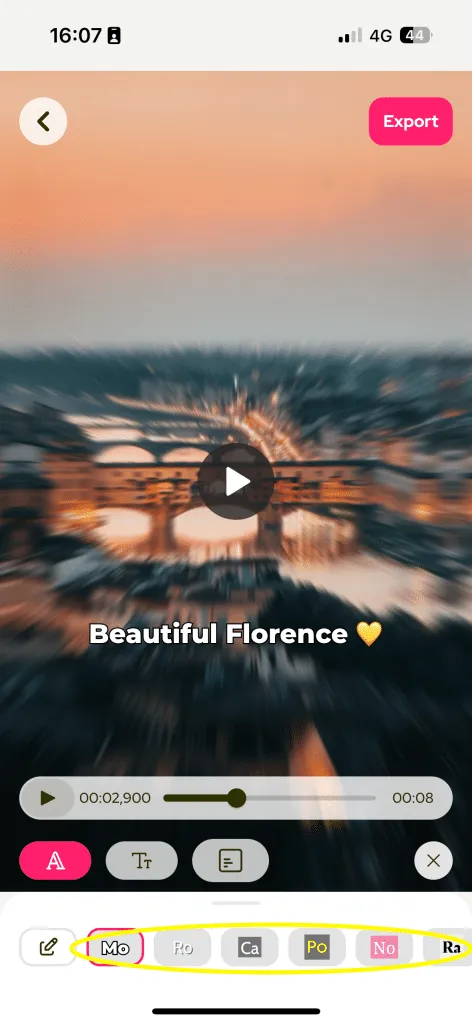
You’ll see this screen. You can see different styles at the bottom. However, if you like to create your own, simply tap edit button shown with a pen icon.
When you start to create your own font style, you’ll see this page.
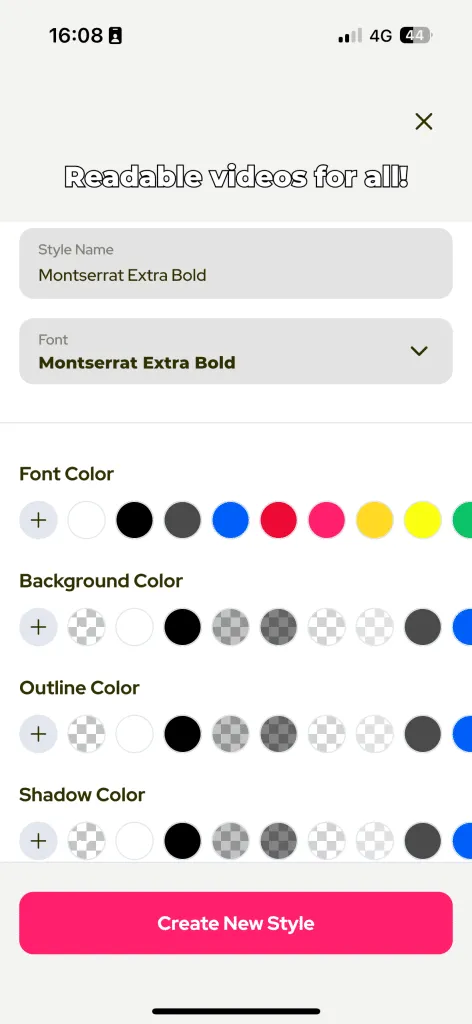
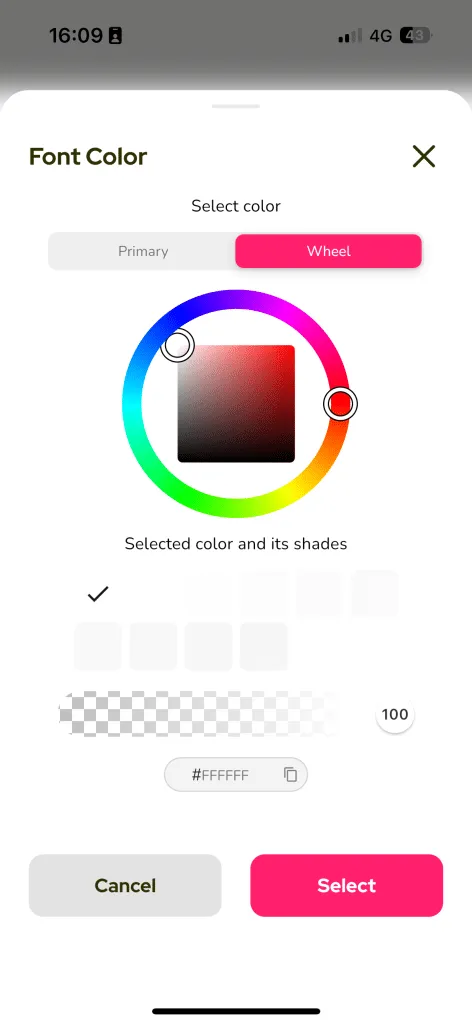
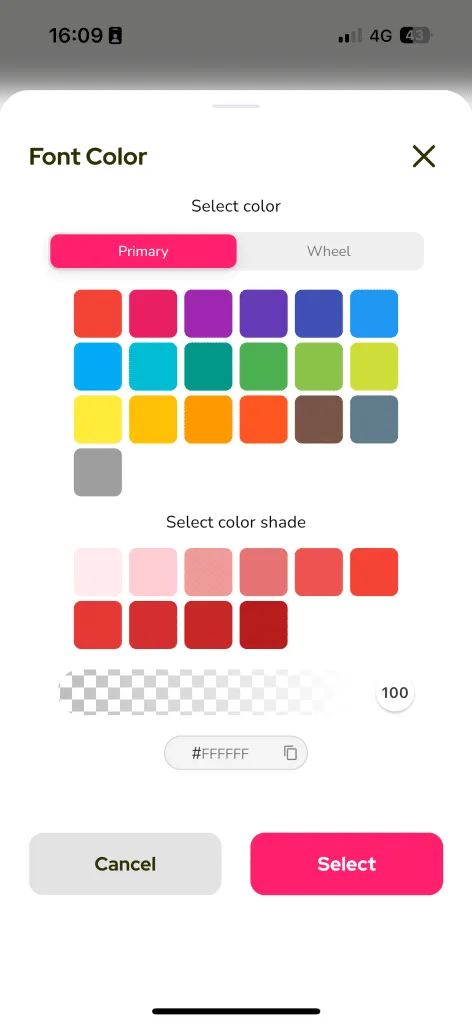
You can change font, background, outline and shadow color on this screen. You can select a color from the primary tab or use the color wheel.
You can also put in Hex code to get the exact color you’d want. For example, #FF0000 for red.
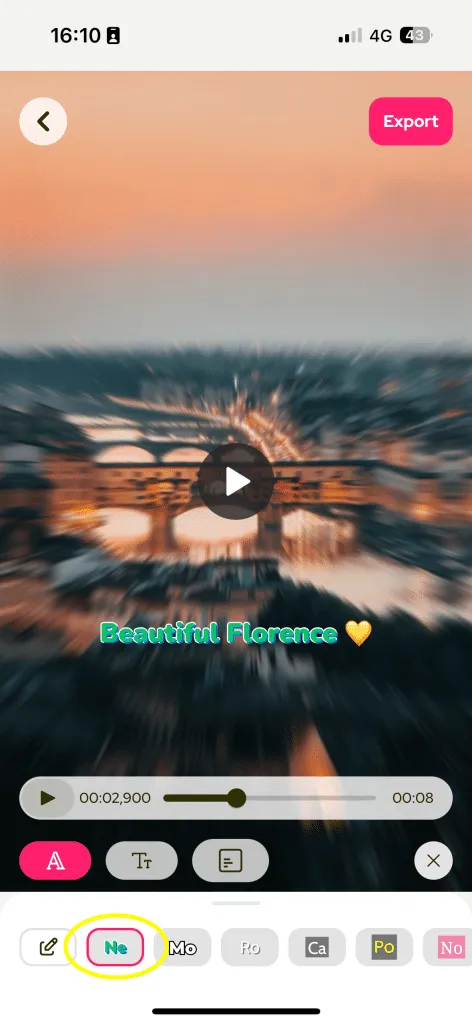
You can name your own style. The first two letters of the name will be shown on your font preview.
How to change the font size
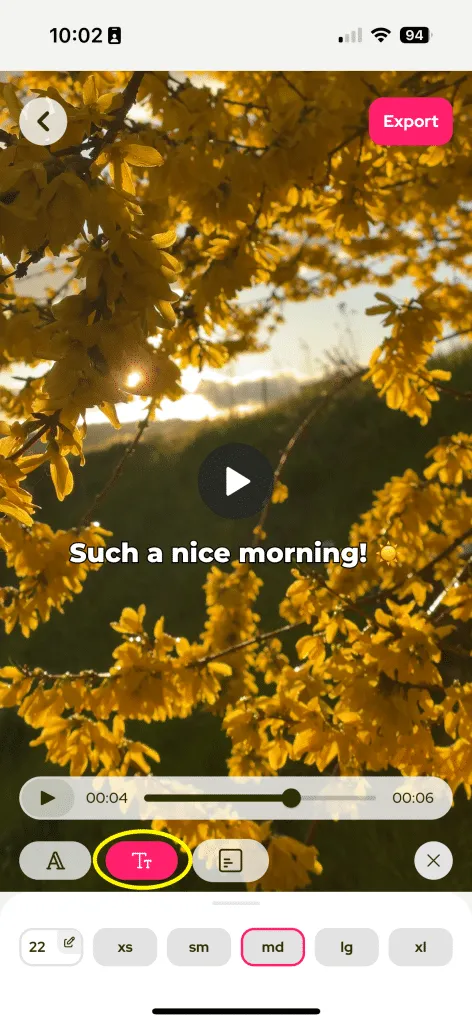
It’s really easy to change the size of your text. Just select Style button at the bottom of the page.
Then select the size button:
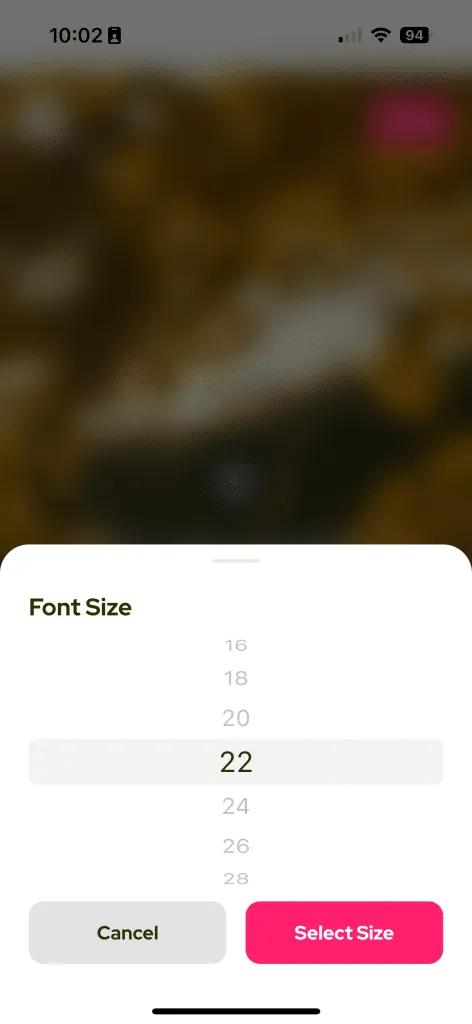
You can also set your own size by selecting the button at the bottom left corner.
Then you’ll see all the different size options. Just scroll up and down to select the perfect size for your text.
How to add custom fonts or choose from Google fonts
After you add your video, select Style to customize your text style.
You’ll see this screen. You can see different styles and fonts at the bottom. However, if you like to add your own font or change the style, simply tap edit button shown with a pen icon.
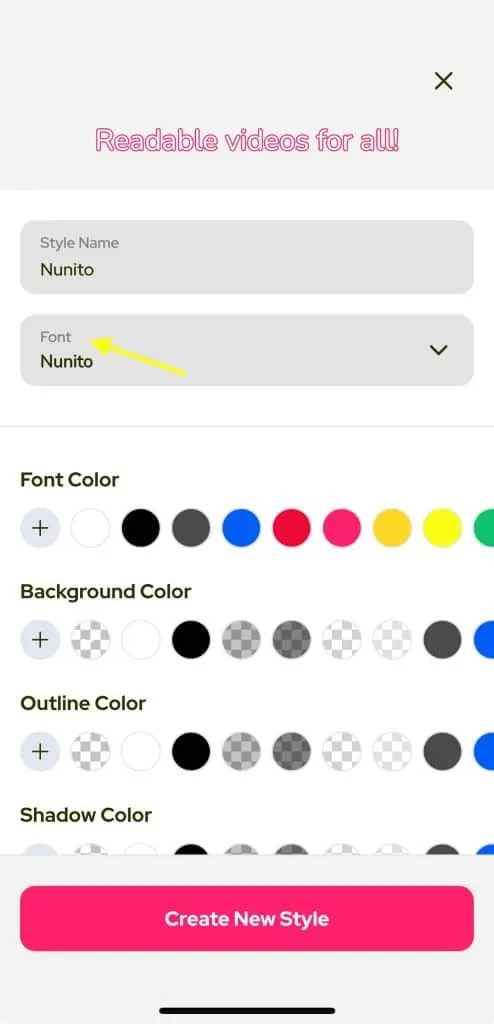
When you start to create your own font style, you’ll see this page. Select Font to be able to choose fonts.
You can choose from the givenfonts. If you like to add your own font or choose from 900+ Google fonts, select +Add New Font.
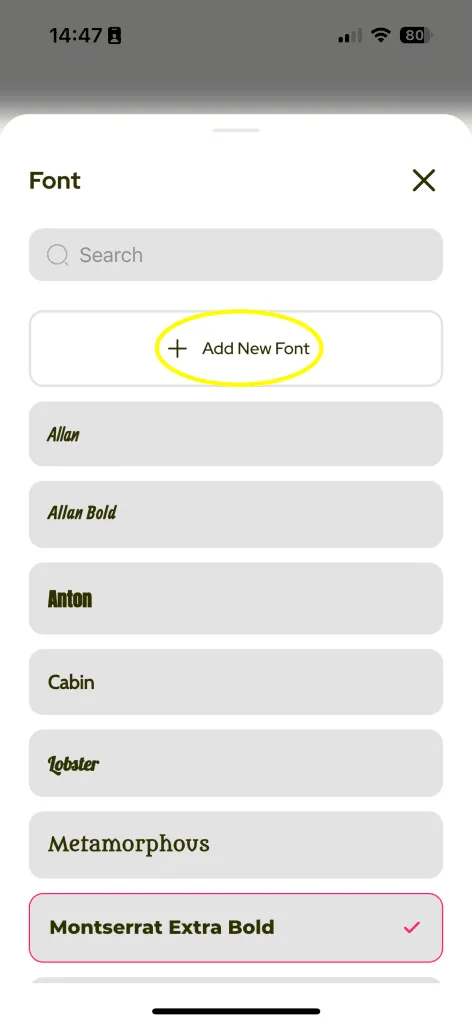
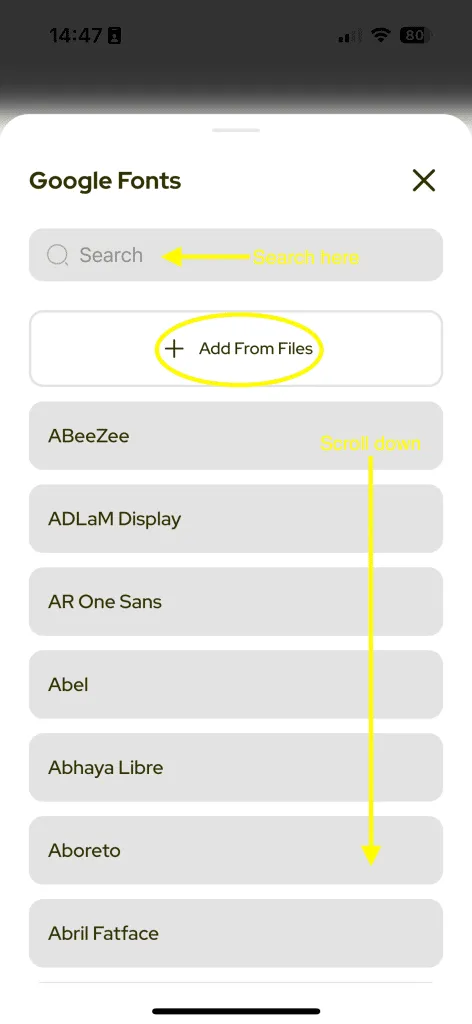
When you select +Add New Font, you’ll see the screen below. You can scroll down the list of Google fonts or search the name if you know it.
If you like to add a custom font, just select +Add from Files.
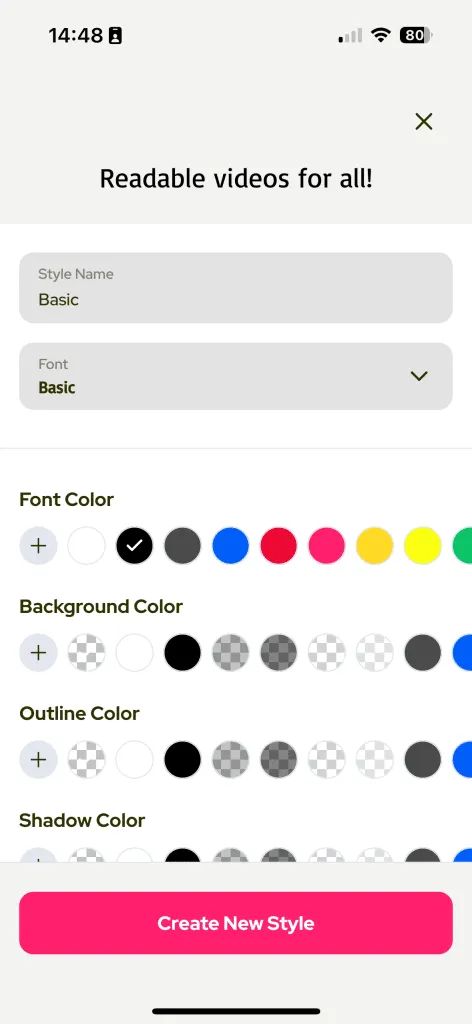
Then your custom font or Google font will be added to the first font list. And now you can change the style of the font chosen and name it. Save it by selecting Create New Style.
How to add your own brand logo
You can now add your own brand logo to your videos with Subcap!
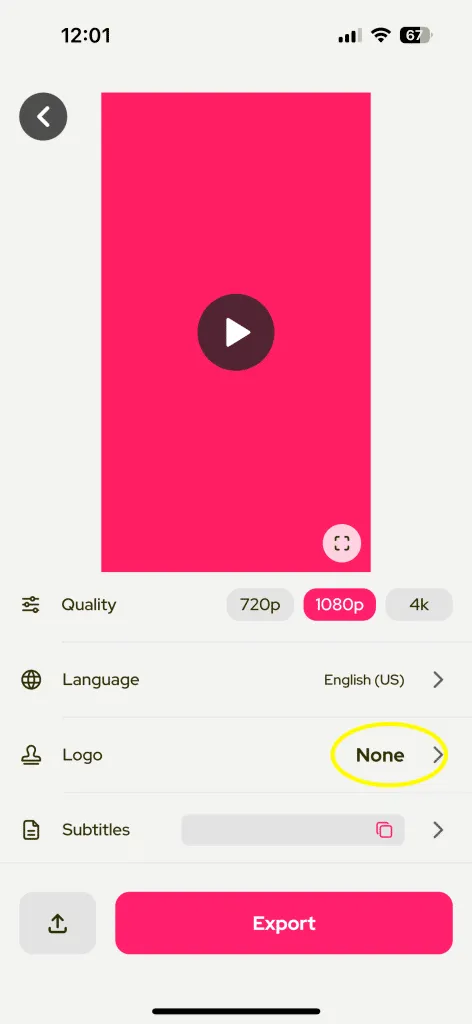
Go to Export page. When you are on the Export page, you’ll see that no Logo is chosen and it shows None.
Tap None to add your own logo.
Tap Add New Watermark button at the bottom of the page.
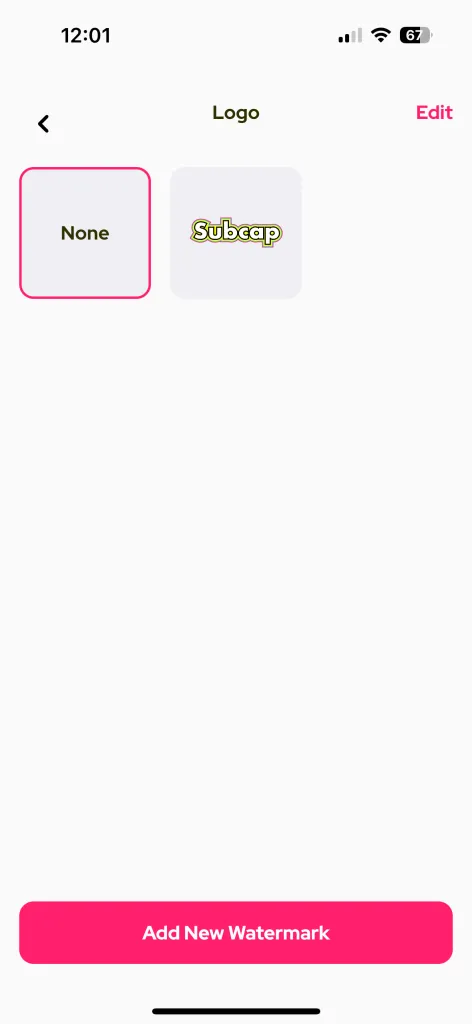
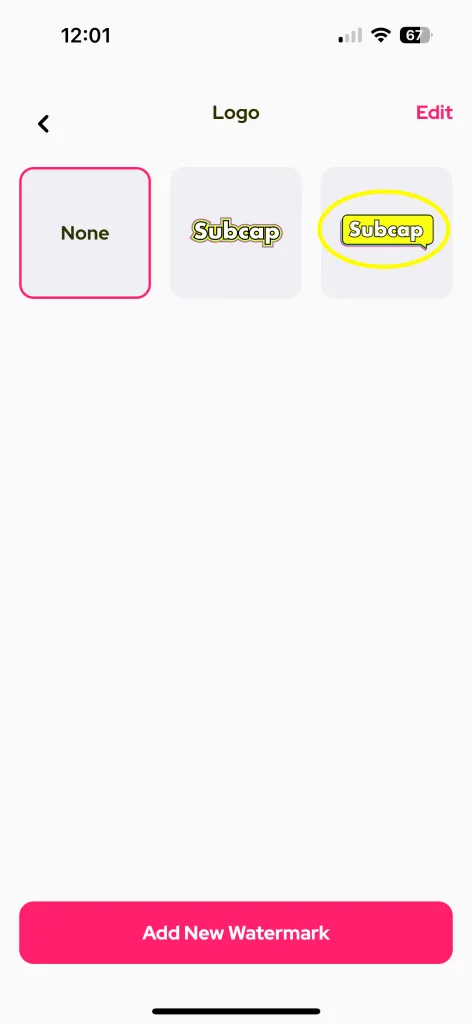
Now your logo is added and you can see it. Still None is selected so you need to select your added logo.
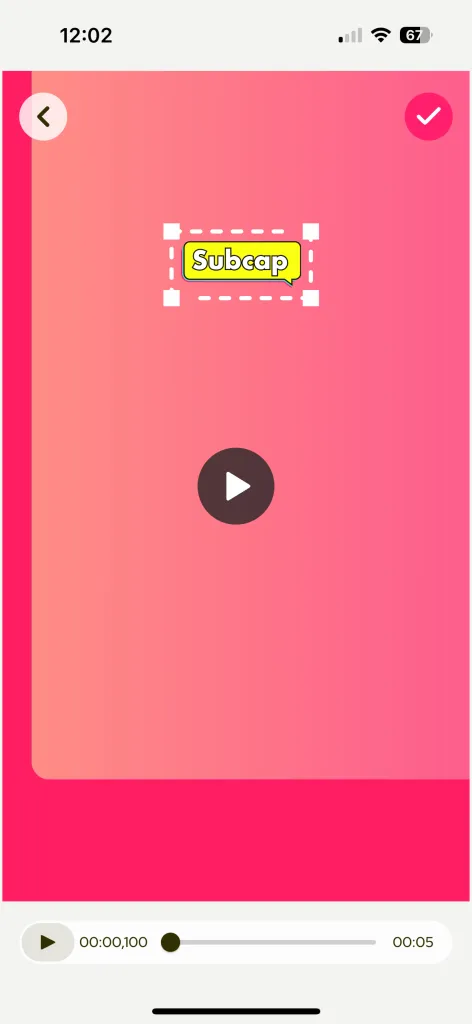
And then you can put your logo wherever you like on the video.
Subscription and payments
How can I see my subscription details?
I would like to see my subscription details. How can I do that?
You can easily view and manage your subscription details anytime. Just head over to your store and everything will be right there.
🍎 Apple Devices (iOS)
- Open Settings on your iPhone or iPad.
- Tap your Apple ID at the top.
- Go to Subscriptions.
- Tap Subcap to view your current plan, renewal date, and manage your subscription.
🤖 Android Devices
- Open the Google Play Store.
- Tap your Profile icon in the top right.
- Go to Payments & Subscriptions → Subscriptions.
- Tap Subcap to view and manage your subscription details.
💡 If your subscription isn’t showing up, make sure you’re checking with the same Apple ID or Google account you used when purchasing iMemo. If you’re still having trouble, don’t hesitate to reach out to us!
How can I restore my purchase?
I am a pro user but it’s asking me to subscribe
So you’ve already paid and cannot use your Pro features?
This might happen from time to time. All you need to do is restore your purchase.
Here’s how you can do this;
- Tap menu button on the right corner
- Then this menu will pop up and select “Restore Purchases”.
- It will automatically recognize your pro account and you will be able to use your Pro features.
I am changing my phone, how can I use Subcap on the other phone?
If you are changing your phone from iOS to iOS or Android to Android, here’s how you can do it:
Select this button:
This menu will pop up and select “Restore Purchases”.
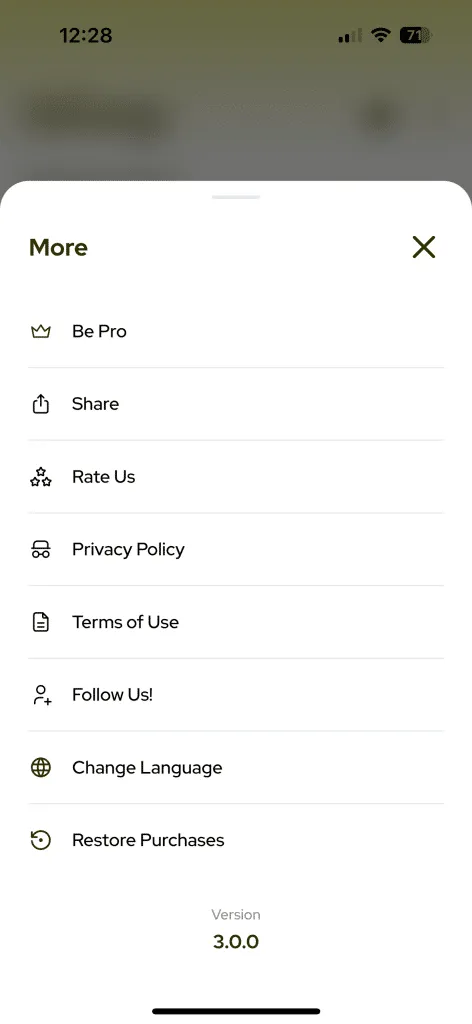
Can I use my subscription both on my phone and tablet?
If your phone and tablet are both iOS or Android, yes you can!
In order to use your subscription on another device, you should do the following:
Select this button:
This menu will pop up and select “Restore Purchases”.
However, if you have an iOS phone and Android tablet or vice versa, you cannot use the same subscription.
What should I do if I’m having payment issues?
If you’re experiencing payment issues, we recommend the following steps:
- Verify that your payment information is up to date in the respective payment system profiles – Apple or Google.
- Confirm that the card associated with your account is valid and has not expired.
- If you’re using a new payment method, you may need to call your bank for authorization.
- Last but not least, check that you have a stable internet connection before completing the transaction.
If you continue to experience problems after following these steps, please reach out to Apple Support or Google Support directly, as they handle all payment processing for iMemo.
You can also reach us via chat support, we are always happy to help 💜
Are there any differences between the subscription plans?
The features and privileges offered across our subscription plans are consistent.
They differ only in terms of subscription duration and the corresponding pricing.
Longer subscriptions, such as the one-year plan, offer the most value from a cost perspective.
How can I change my subscription plan?
Subcap is not authorized to do anything about the subscriptions.
To change the subscription plan:
For iOS: Go to your phone’s homepage, go to Settings> Your Apple ID> Subscriptions and you will see Subcap in the list, click it. You can see all the subscription plans from there and select one of them.
For Android: Open the Google Play app, tap the profile icon at the top right, tap “Payments & subscriptions” and then Subscriptions. Select Subcap>Manage>Update
How can I unsubscribe?
Subcap is not authorized to do anything about the cancellation of subscriptions.
To cancel the subscription:
iOS: Go to your phone’s homepage, then go to Settings> Your Apple ID> Subscriptions and you see Subcap in the list, you can cancel the subscription from there.
For Android: Open the Google Play app. At the top right, tap the profile icon. Tap Payments & subscriptions and then Subscriptions and you see Subcap in the list. Tap Cancel subscription.
Support
How to report an error
First, if you are getting an error, there are certain things you should check. Make sure you select the right language (the language of the video), have enough storage, have an internet connection, and give access permissions to Subcap.
If you still have problems or get an error, you can reach us from the chat support inside the app.
You can also send us your video so that we can check if there is a bug we haven’t realized. Send us an email with your video: hello@subcap.app
No match. Try another word or ask us.