Breaking Language Barriers: How Subcap Helps Brands Go Global
The world is experiencing a wild change in terms of technology. With the acceleration of AI, the world is connected deeply more than ever!

Translation
Generate the captions, pick a language, translate. Fix any line by hand, then export the video with the translation, the original, or both at once.
Most viewers watch with the sound off, and many of them do not speak your language. A translated subtitle track turns the same clip into a video for a second market without a second shoot, a voice-over or a dub. It also helps search: platforms read the caption text, and a Spanish or Portuguese track makes the video findable in those languages.
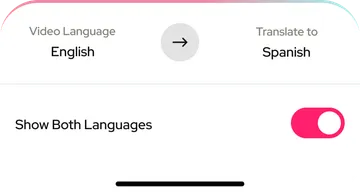
Subcap starts from the captions. Generate them from the speech, import an .SRT file or type them by hand, then add a language. The translation keeps the timing of every caption, so it stays in sync with the speaker. Open the translated track, read it through and fix anything that sounds off: names, product terms, jokes. Then choose what the exported video shows: only the translation, only the original, or both languages at once.
The whole thing happens on your phone. No uploading to a website, no downloading a file and importing it into an editor, no desktop.
Keep the original captions short; long lines turn into longer translated lines. Check numbers, names and anything with a double meaning. If the video is for one market, export only the translation and keep the style you use for that audience; if it serves two, use the dual language layout with a smaller, lighter style for the second line.
Generate them from the speech, import an .SRT file, or type them. Subcap detects the spoken language, or you pick it.
In the Language section, tap Add New Language and choose the target language. Read through the translation and fix any line, the same way you edit the original.
Pick what the video shows: the translation only, the original only, or both at once. Export in 720p, 1080p or 4K, or download the translation as .SRT for YouTube.
More in the FAQ and on the pricing page.
The world is experiencing a wild change in terms of technology. With the acceleration of AI, the world is connected deeply more than ever!
Did you realise that focusing has never been harder? Well, you are not alone, your audience also has the same problem.
Your first automatic caption video and first automatic translation are free. Go Pro for the rest, and reach viewers in 100+ languages.